> ## Documentation Index
> Fetch the complete documentation index at: https://developers.autoplay.ai/llms.txt
> Use this file to discover all available pages before exploring further.
# Userpilot — How to setup
> Trigger a Userpilot flow from the Autoplay event stream.
Autoplay streams structured UI actions from your users' browser sessions in real time. This tutorial wires that stream to Userpilot so that when the right moment arrives — a user stuck on a page, a first-time feature visit, a repeated error — your backend detects it and fires the correct Userpilot flow immediately.
This tutorial builds on [How to trigger a User Tour](/recipes/user-tour/overview). Complete that guide first — it covers the proxy route, EventSource connection, and payload structure. This page covers only what is specific to Userpilot.
## 1. Install Userpilot
Add the snippet to your app and initialize it with your token from **Settings → Environments**.
```html theme={null}
```
```javascript theme={null}
import Userpilot from 'userpilot';
Userpilot.initialize('YOUR_APP_TOKEN');
```
## 2. Identify the user
Call this once the user is authenticated. Use the same `userId` you send to PostHog so Autoplay can match sessions correctly.
```javascript theme={null}
userpilot.identify(userId, {
name: user.displayName,
email: user.email,
created_at: user.createdAt, // ISO 8601
});
```
## 3. Create a flow in Userpilot
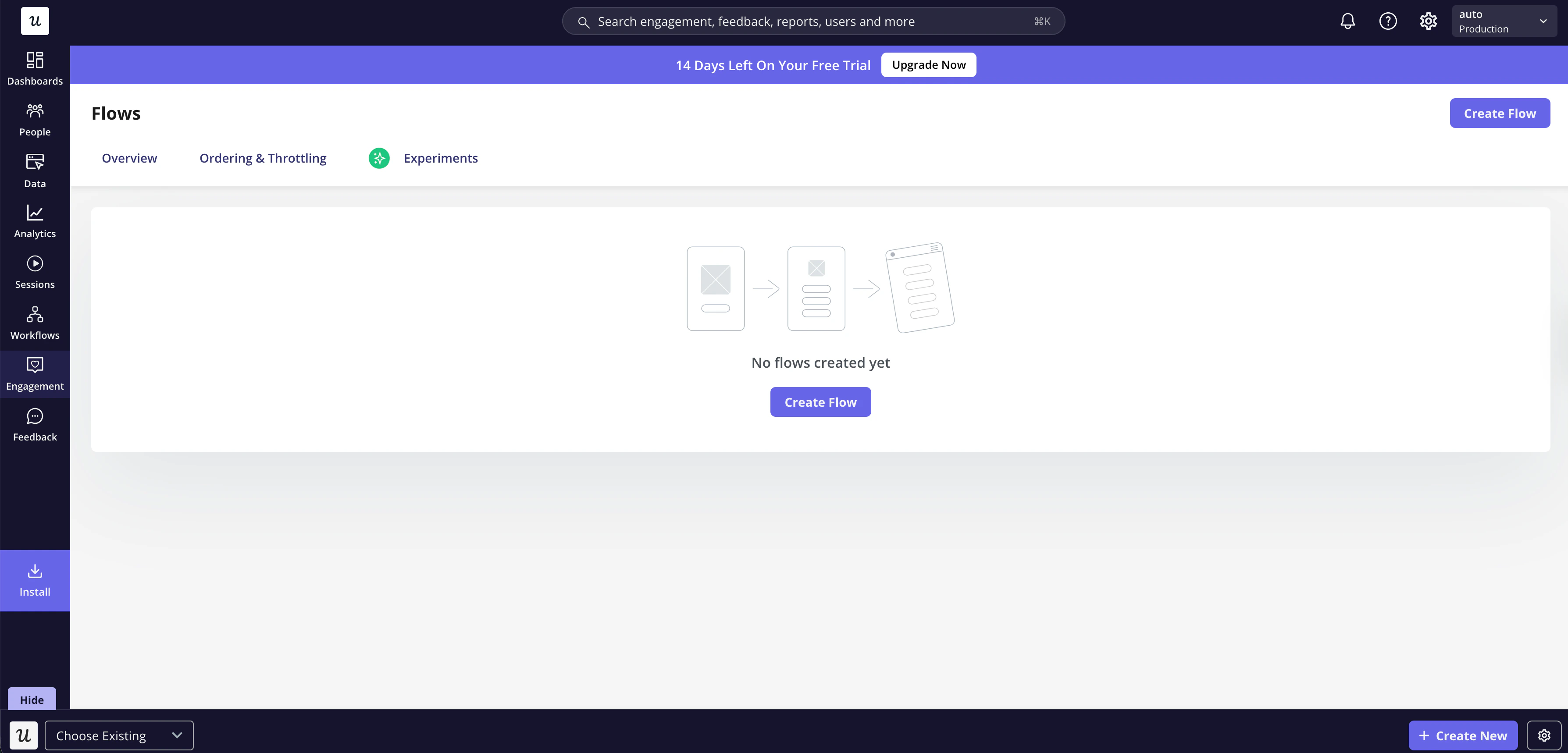
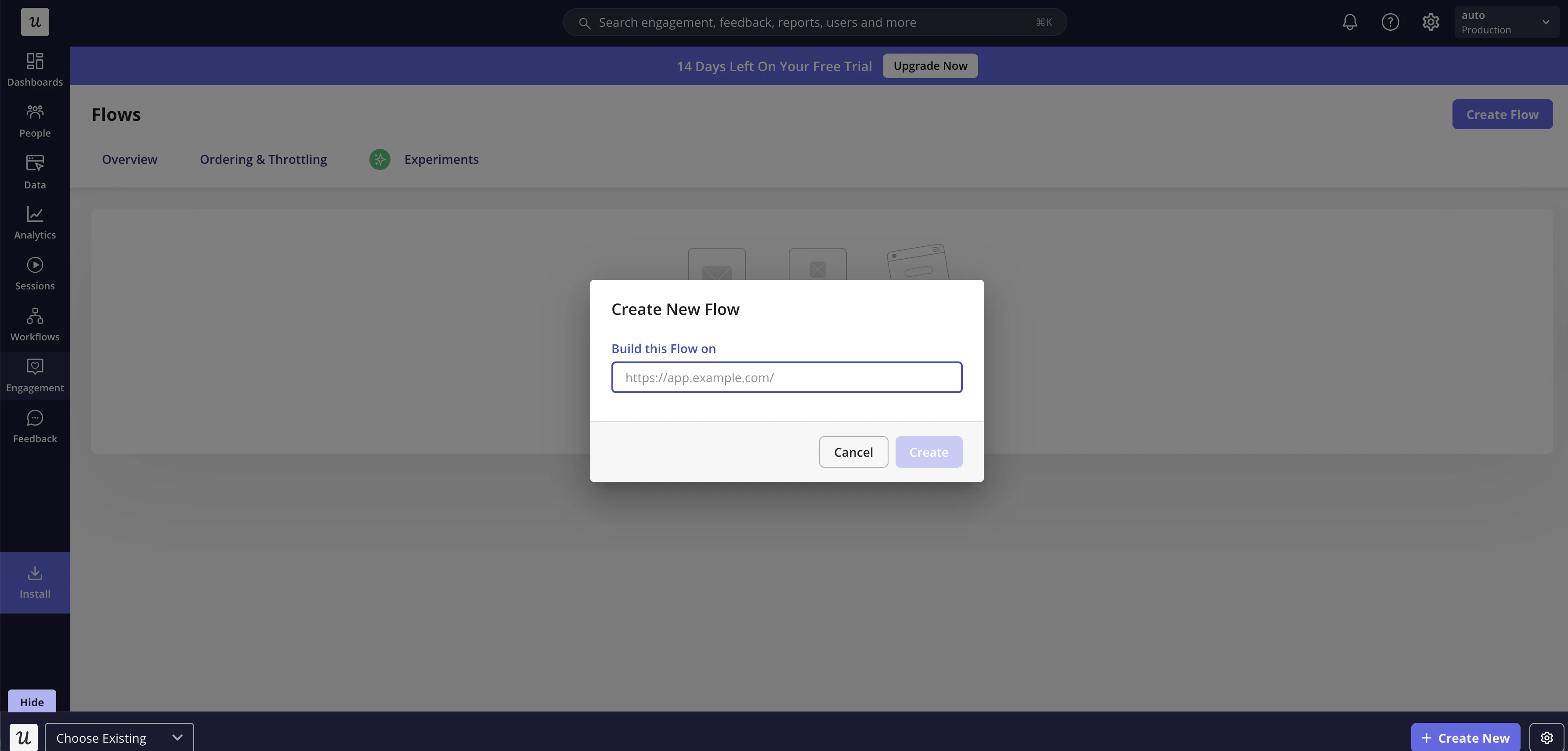
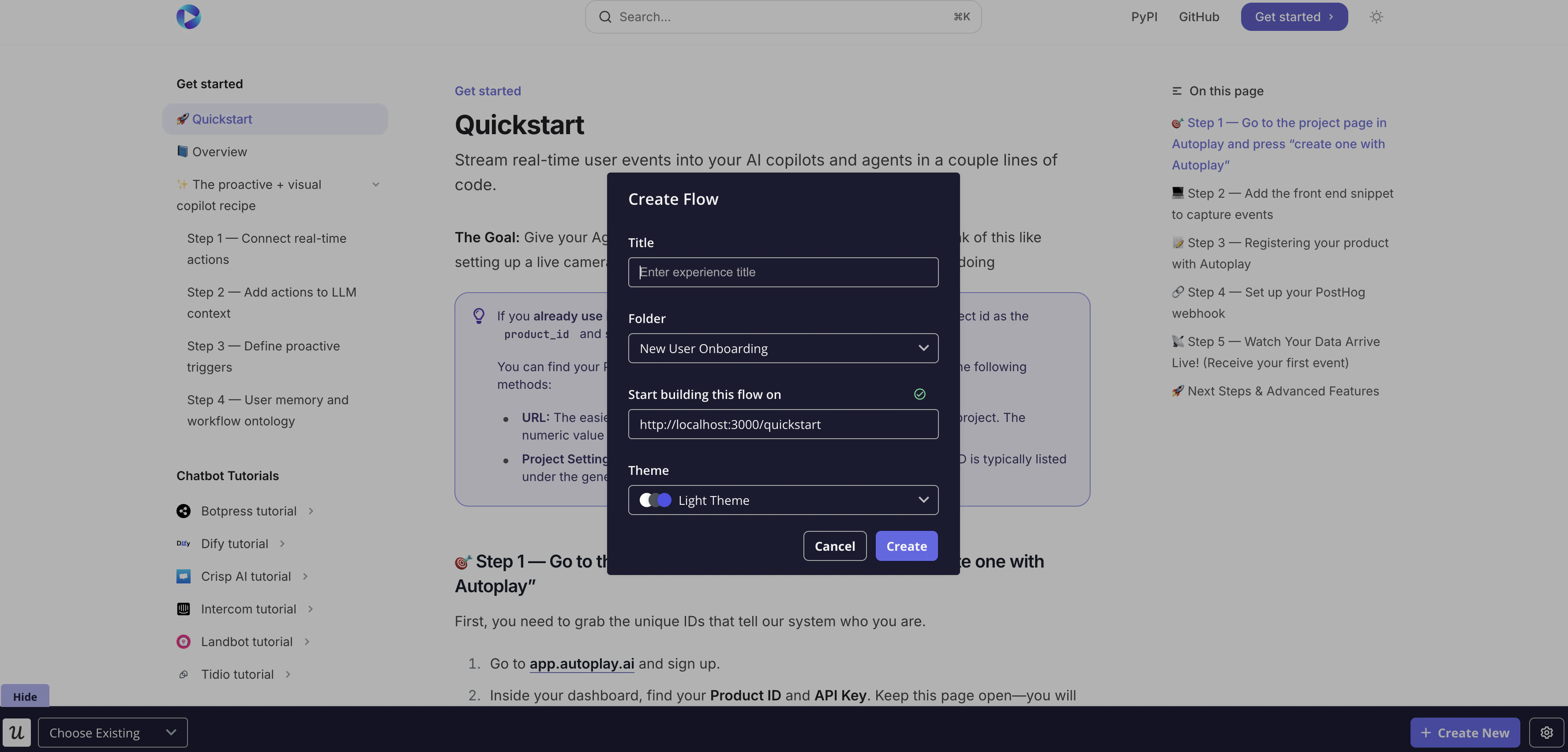
1. In the Userpilot dashboard go to **Flows → Create flow** and build your tour.
2. Set any targeting rules you need (page URL, user segment, etc.).
3. Publish the flow.
4. Note the **Flow ID** shown in the URL bar (`/flows//edit`)
 ## 4. Trigger the tour
In your `onmessage` handler from [Step 4 of the base guide](/recipes/user-tour/overview#4-understanding-the-payload), add the Userpilot trigger call:
```javascript theme={null}
events.onmessage = (event) => {
const payload = JSON.parse(event.data);
if (payload.type !== "usertour_trigger") return;
const mySessionId = posthog?.get_session_id?.() ?? null;
if (!mySessionId || payload.session_id !== mySessionId) return;
userpilot.trigger(payload.flow_id);
};
```
The `flow_id` in the payload maps to the **Content ID** of your Userpilot flow, visible in the URL when editing the flow in the Userpilot dashboard.
## 4. Trigger the tour
In your `onmessage` handler from [Step 4 of the base guide](/recipes/user-tour/overview#4-understanding-the-payload), add the Userpilot trigger call:
```javascript theme={null}
events.onmessage = (event) => {
const payload = JSON.parse(event.data);
if (payload.type !== "usertour_trigger") return;
const mySessionId = posthog?.get_session_id?.() ?? null;
if (!mySessionId || payload.session_id !== mySessionId) return;
userpilot.trigger(payload.flow_id);
};
```
The `flow_id` in the payload maps to the **Content ID** of your Userpilot flow, visible in the URL when editing the flow in the Userpilot dashboard.